The CryptKi Guides
How to read a transaction on Etherscan
You send crypto, approve a transaction, or interact with a DeFi app. A few seconds later, you see a long string of letters and numbers. A transaction hash.
At that moment, many users open Etherscan and realize they do not know what they are looking at. The transaction may say confirmed, but did the funds actually move? Did the smart contract do what you expected? Did it fail? Did you pay a normal fee?
This guide shows you how to read a transaction step by step using Etherscan as the main example: etherscan.io. The same logic applies to other explorers, even if the layout changes. Etherscan also has a dedicated gas page at etherscan.io/gastracker.
👉 If some of these concepts are still unclear, start here first:
→ Crypto transactions: how they work
→ How to send and receive crypto safely
→ Smart contracts: what they are and why they matter
Step 1. Find the transaction hash
A transaction hash is the unique identifier of a transaction on a blockchain. On Ethereum and EVM-compatible networks, it usually starts with 0x.
Where you find it depends on what you just did. In a wallet, open the transaction history, select the transaction, and look for something labeled "Transaction ID", "Tx hash", or "View on explorer". On an exchange, go to your withdrawal history and open the transaction details. In a DeFi app, look for a "View transaction" or "View on explorer" link that appears after confirmation. If something went wrong, error messages or support requests often include the hash directly.
👉 Example: you send ETH and the recipient says nothing arrived. You open your wallet, go to the transaction history, select the transaction, and copy the hash. That is what lets you verify what actually happened, independently of what the wallet interface shows.
⚠️ Without the transaction hash, you cannot reliably verify a specific transaction.
Step 2. Open the transaction in the right explorer
Go to Etherscan, paste the transaction hash into the search bar, and press Enter.
If no expected results appear, stop and check two things: that you are on the correct network, and that the transaction was not made on another chain. A transaction that happened on Base or Arbitrum will not appear on Etherscan, which covers Ethereum mainnet only. Etherscan's own site navigation also separates Ethereum Mainnet from other explorers and testnets.
For other EVM networks, the interface is nearly identical:
- Arbiscan for Arbitrum
- Basescan for Base
- BscScan for BNB Chain
- Polygonscan for Polygon
For other blockchains, it can be slightly different because the way the blockchain works can differ.
- Blockchain explorer for Bitcoin
- Solscan for Solana
The logic is similar, but the fields are not always named the same way.
⚠️ A transaction hash only makes sense on the network where it was recorded.
Step 3. Check the status first
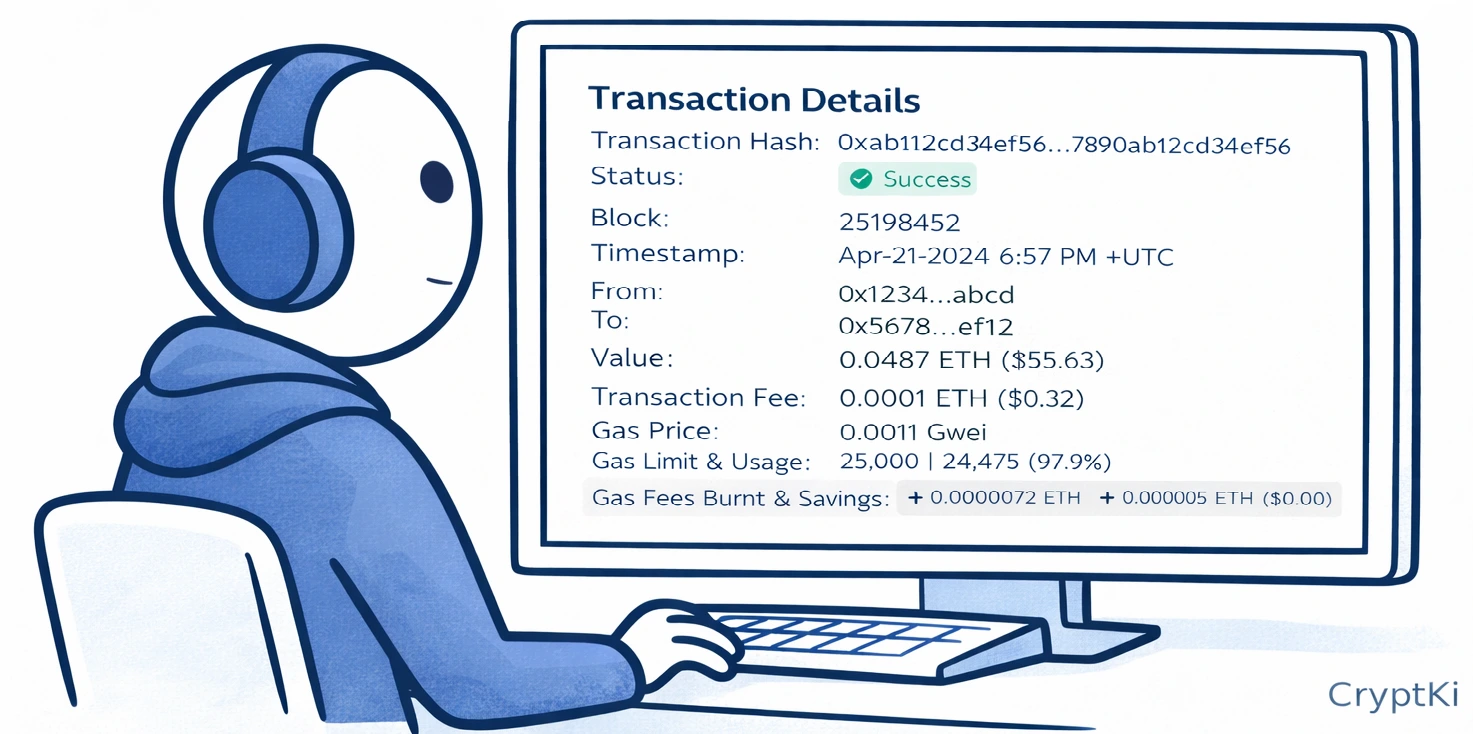
When the transaction page opens, start with the simplest question: what is the status?
Pending means the transaction has been broadcast but is not yet included in a block, or not yet final enough for the explorer to treat it as complete.
Success means the transaction was included in the blockchain and executed successfully.
Failed means the transaction was recorded, but the intended execution did not complete. This is an important point: a failed transaction is still a real on-chain event. It can still consume gas. It can still appear in your history.
Dropped / Replaced means the transaction was superseded by another one, usually submitted with a higher gas price before the original was confirmed.
👉 Example: you try to swap a token. The transaction fails because the slippage conditions were no longer met. The swap does not happen, but the gas used for the attempt is still spent.
Do not move on too quickly after seeing "Success". It only means the transaction executed. It does not mean it did what you expected.
Step 4. Identify who sent it, where it went, and what kind of action it was
Most explorers show at least three key fields: From, To, and Value.
From is the address that initiated the transaction. To is the destination — Etherscan labels it "Interacted With (To)" when the destination is a smart contract, and simply "To" for a standard wallet address. Value is the amount of native ETH transferred directly in the transaction itself.
That last point is often misunderstood. If you are interacting with a token contract, the Value field may show 0 ETH even though tokens moved. That is normal. Token movements appear elsewhere on the page.
👉 Example: you send USDC on Ethereum. Etherscan shows Value: 0 ETH because no ETH was transferred directly. The USDC movement appears in the token transfer section.
The To field also tells you what kind of action this was. A normal wallet address suggests a simple transfer. A contract address means the transaction was a smart contract interaction, which changes how you read the rest of the page.
💡 You can click on any address shown on the page to open its full history on Etherscan. This lets you see whether it is a wallet or a contract, and whether Etherscan has labeled it. Major exchanges, protocols, and known entities are often identified by name.
Step 5. Understand the gas section
Gas reflects the computational work required to process the transaction. By default, Etherscan shows the Gas Price and the Transaction Fee. On recent Ethereum transactions, the gas price is often expressed through base fee and priority fee rather than a single number. This is the structure introduced by EIP-1559. To see the full breakdown, click "More Details" on the transaction page.
Gas limit is the maximum amount of gas the sender allowed. Gas used is what was actually consumed. You only pay for what was used, not for the full limit.
To calculate the transaction fee:
👉 If Gas Price is shown in gwei, Transaction Fee (ETH) = (Gas Used × Gas Price) / 1 000 000 000
👉 Gas Price = Base Fee + Priority Fee
The fee itself is composed of several parts. On Ethereum-style EIP-1559 transactions, the Base Fee is set by the network and burned. That ETH is permanently removed from circulation. The Priority Fee (also called Max Priority Fee) is the tip paid to the validator.
The Max Fee is the maximum the sender agreed to pay per unit of gas. Etherscan also shows Txn Savings, which is the difference between the Max Fee you accepted and what you actually paid.
👉 Example: a wallet sets a gas limit of 150,000 for a contract interaction. The transaction uses 92,000 gas. You pay for 92,000, not 150,000.
In a failed transaction, the gas used may still be substantial. The network processed the attempt. That work still has a cost.
💡 You can check current gas conditions before sending at etherscan.io/gastracker. The gas tracker shows Standard, Fast, and Rapid estimates, along with Base and Priority values and example action costs.
⚠️ Gas measures execution cost, not success.
Step 6. Recognize the type of address and interaction
Not all addresses shown by explorers represent user wallets, and not all transactions are simple transfers.
A wallet address is controlled by a user and can send and receive funds. A smart contract address executes code and is used for DeFi, token transfers, NFTs, and most on-chain applications. A burn address (such as 0x0000000000000000000000000000000000000000) is used to permanently remove tokens from circulation by sending them somewhere no one controls. If the To field is empty and the explorer shows "Contract Creation", the transaction deployed a new smart contract rather than interacting with an existing one.
A simple transfer has one sender, one recipient, and a native coin amount. A smart contract interaction looks different: the To field is a contract, the Value is often zero, tokens may move without any ETH being sent directly, and the page includes input data, token transfers, and logs.
👉 Example: you interact with a DEX. Etherscan shows your wallet in From, the DEX contract in To, and 0 ETH in Value. Yet USDC leaves your wallet and ETH arrives. That happened because the contract executed a swap. The Value field alone does not describe what occurred.
This is where users often realize that reading a transaction means looking beyond the first line.
Step 7. Look at the input data
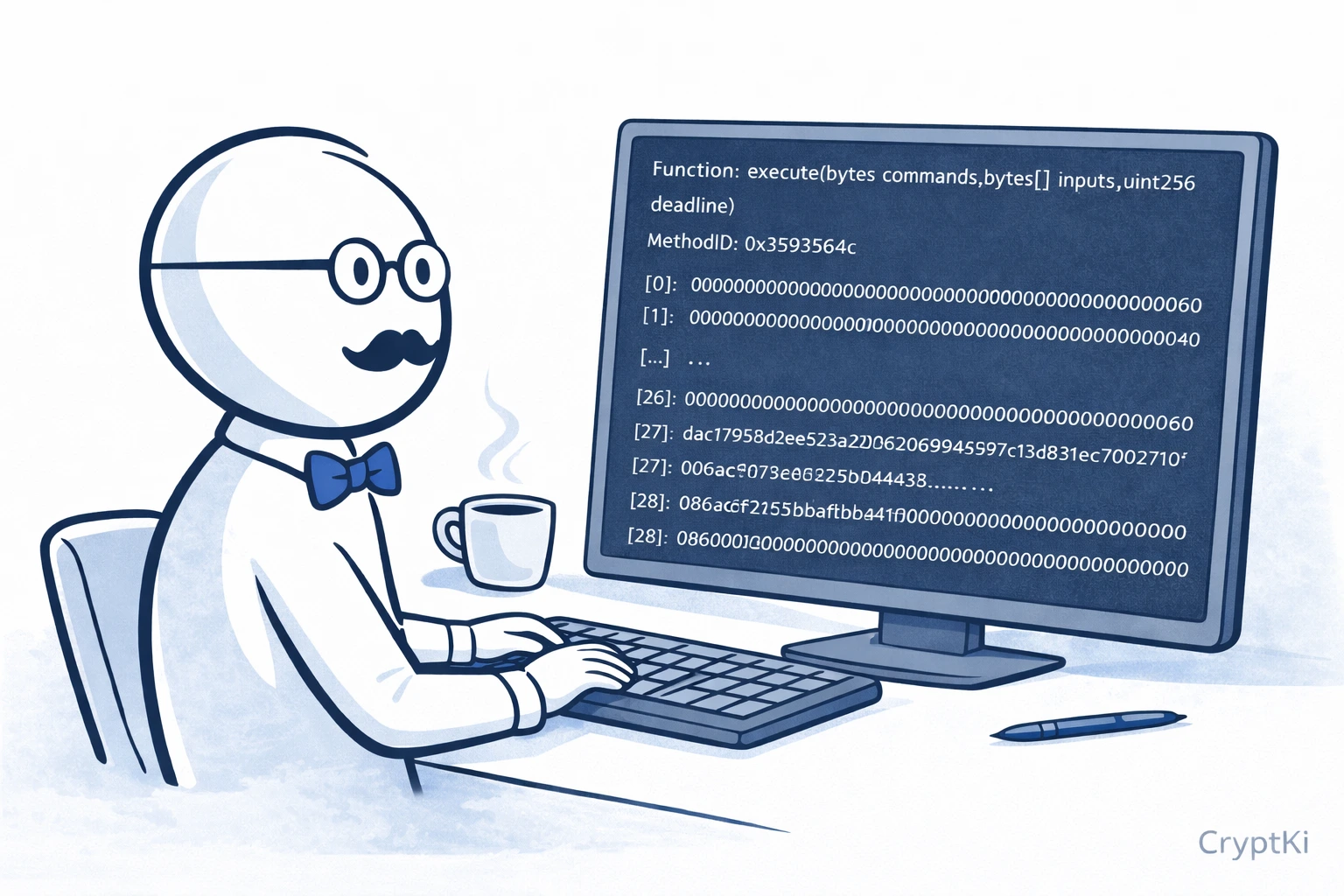
The input data is the encoded instruction sent to the contract. For a normal transfer, this field is empty or minimal. For a contract interaction, it contains the function call and its parameters.
On Etherscan, if the contract is verified, the explorer decodes this into something readable: the function name, the amounts involved, the addresses referenced, and any other parameters specific to the protocol.
👉 Example: a token approval transaction may show that the function called was approve, the spender address, and the exact amount approved. This tells you what the transaction instructed the contract to do, not just what the outcome looked like.
In practice, many transactions follow recurring patterns. Once you recognize them, reading a transaction becomes much easier. Common examples include:
- `approve(address spender, uint256 amount)` Allows a contract to spend your tokens. Nothing may move immediately. The actual transfer can happen later through another transaction. → Approvals and permissions: what you sign in DeFi
- `transfer(address to, uint256 amount)` A direct movement of tokens from one address to another.
- `swapExactTokensForTokens(...)` or `supply(...)` More complex interactions used in DeFi. These transactions often combine multiple actions internally, which is why the result is not always obvious from the first line.
👉 Over time, recognizing these function names helps you understand what a transaction is doing, even before reading all the details.
If the contract is not verified, the input data appears as raw hexadecimal. That is less readable, but it still confirms the transaction was carrying instructions beyond a simple transfer.
Step 8. Check token transfers and logs
The token transfer section is often the most useful part of the page after the status. It shows which tokens moved, from which address, and to which destination, regardless of what the Value field shows.
👉 Example: you see Value: 0 ETH, but in the token transfer section you see 500 USDC sent from your address, wrapped ETH received, and a protocol fee deducted elsewhere. Now the transaction becomes readable.
⚠️ If you only read the Value field, you may completely misunderstand a token transaction.
Logs are what make this section possible. They are records emitted by the smart contract during execution, and explorers use them to detect token movements and reconstruct what happened internally. Without logs, many token transfers would simply be invisible on the page. You do not need to read raw logs line by line, but understanding that they exist explains why the token transfer section shows information that the top-level summary does not.
Step 9. Know how to read errors
When a transaction fails, Etherscan may show an error message. Sometimes it is clear. Sometimes it is vague.
Execution reverted means the contract refused to complete the action under the conditions provided. Out of gas means the gas limit was set too low for the execution to finish. Reverted with reason means the contract returned a specific error message that can help identify what went wrong.
👉 Example: a swap fails because the minimum output condition was not met. The transaction is recorded on-chain, but the intended swap does not happen. The gas spent on the attempt is not returned.
A failed transaction is not the same as a missing one. It happened. It was processed. It just did not complete the action you intended.
Step 10. Additional fields worth knowing
Etherscan includes several fields that provide useful context beyond the main summary.
Block tells you which block the transaction was included in. Timestamp shows when it was confirmed. Confirmations shows how many blocks have been added since.
For contract addresses, Etherscan provides additional tabs. The Contract tab includes a Read Contract section, which lets you query the contract's state directly. These are read-only calls — they do not move funds, do not trigger transactions, and do not require a signature.
⚠️ Some explorers also expose a Write Contract section. This allows you to interact directly with the contract and can trigger real transactions that require gas and a wallet signature. Only use it if you fully understand what each function does and what you are approving.
You may also see an Internal Transactions tab. This shows operations triggered by the contract itself during execution — transfers or calls that happened as a result of your transaction but were not directly initiated by your wallet.
If something looks wrong
If the transaction succeeded but the result is not what you expected, do not repeat the same action immediately. Check the network, token transfers, recipient address, and input data first. If the transaction came from a DeFi app, check whether an approval remains active.
Before you close the explorer
Most users look for a simple confirmation: Success. Confirmed. Sent.
But a transaction often contains more than that. To understand what actually happened, read it in layers: status, from / to / value, gas, token transfers, input data, and errors if any.
The explorer is not there to simplify reality. It is there to expose it.
You do not need to understand every field on the page. The goal of this article is not to cover every possible case. It is to give you a practical method for reading the basics, verifying what happened, and understanding the most important parts of a transaction page.
Focus on understanding what the fields mean, not on memorising a specific interface.
Never rely on a single source when the consequences are irreversible.
Key takeaways
- A transaction hash is the unique identifier of a transaction. It only makes sense on the network where it happened.
- Success does not mean the transaction did what you expected
- Gas used and gas limit are not the same thing — you only pay for what was consumed
- The Value field does not describe token transfers — always check the token transfer section
- Smart contract interactions require reading beyond the first summary line
- A failed transaction is still a real on-chain event and can still consume gas
- Token transfers and decoded input data often explain more than the transaction header
Find out more on CryptKi Academy
-
Crypto transactions: how they work
To understand what a transaction really is before reading it in an explorer. -
Smart contracts: what they are and why they matter
To understand why some transactions are more than simple transfers. -
How to send and receive crypto safely
To understand what should happen before and after a transaction is sent. -
Approvals and permissions: what you sign in DeFi
To understand what a contract approval really means when you inspect it on-chain. -
Wrong network or wrong chain: common mistakes
To understand why a valid transaction may still appear in the wrong place.
CryptKi Academy full index - Browse all articles
Glossary - Check the definition of all specific terms
Every transaction depends on the wallet behind it.
Explore hardware wallets, seed phrase backups, and accessories that support safer self-custody habits.